
By Fredrik Brattstig @virtualbrat
4 May 2026
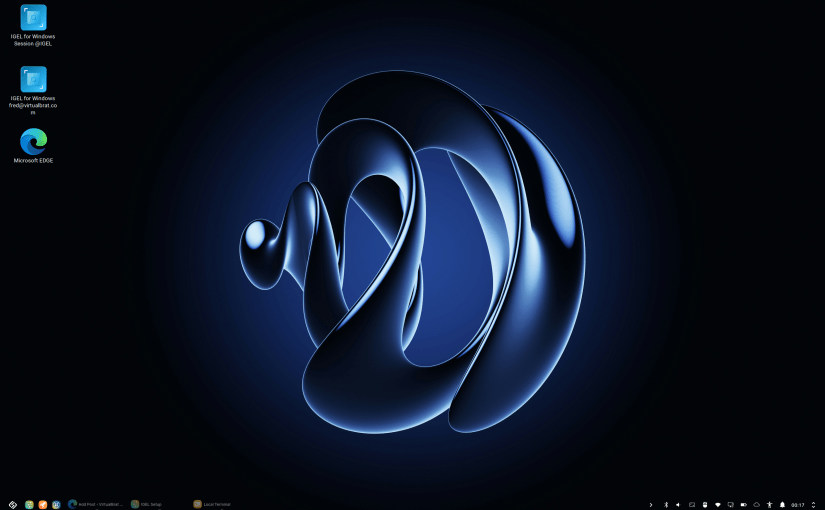
I’m very weak for 3D rendered wallpapers, and I understand why folks would like to have catching nature pictures to rest their eyes on when the desktop of IGEL OS is shown. I created a script that replaces the default IGEL OS wallpaper with a random file every time IGEL OS start up. It gives a very nice user experience, while not making any impacts to system performance and/or connectivity to download updated wallpapers from central locations.
Here is what I did 🙂
First off, you will need to have IGEL OS 12.8.1 (the current version) to enjoy a transparent taskbar (more on this later).
Second, you will need to have a writeable area on the IGEL OS disk (well, its actually not needed to be a writeable area, you can simply build an ipkg and have your wallpapers transferred to a read-only area. More on that in another blog)
For simplicity, just goto IGEL Setup->System->System Customization->Custom Partition->Partition and enable Enable Partition and select a partition size with enough storage to host your wallpapers. For simplicity set the custom partition size to 512M (512 Mega Bytes) and let the mountpoint be /custom
Then, when the partition is created, open a local terminal, login as root and create a folder under /custom named wallpaper by running the command
mkdir /custom/wallpaper
Copy the bunch of wallpapers you would like to have in .jpg format to /custom/wallpaper (can be done using the UMS file transfer, or by local terminal etc.
Now, we need the script to replace the wallpaper, selecting a random file on every boot. Here is the script that I’m using:
#!/bin/bashSRC_DIR="/custom/wallpaper"BASE_DEST_DIR="/usr/share/pixmaps"RESOLUTION=$(xrandr | awk '/\*/ {print $1; exit}')WIDTH=${RESOLUTION%x*}HEIGHT=${RESOLUTION#*x}# Detect supported aspect ratioif [ $((WIDTH * 10)) -eq $((HEIGHT * 16)) ]; then RATIO="16x10"elif [ $((WIDTH * 9)) -eq $((HEIGHT * 16)) ]; then RATIO="16x9"elif [ $((WIDTH * 3)) -eq $((HEIGHT * 4)) ]; then RATIO="4x3"else RATIO="16x9"fiDEST_DIR="$BASE_DEST_DIR/$RATIO"echo "Detected resolution: $RESOLUTION"echo "Using ratio folder: $RATIO"echo "Using destination directory: $DEST_DIR"setparam windowmanager.wm0.variables.taskbarbackground.style 3setparam windowmanager.wm0.variables.taskbarbackground.image_path /intentionally_false_taskbar_image_to_set_takbar_background_to_transparent.jpgRANDOM_FILE=$(find "$SRC_DIR" -type f \( -iname "*.jpg" \) | shuf -n 1)if [ -z "$RANDOM_FILE" ]; then echo "No JPG files found in $SRC_DIR" exit 1fiif [ ! -d "$DEST_DIR" ]; then echo "Destination directory does not exist: $DEST_DIR" exit 1fiecho "Using source image: $RANDOM_FILE"find "$DEST_DIR" -type f -iname "*.jpg" | while read -r DEST_FILE; do cp "$RANDOM_FILE" "$DEST_FILE" echo "Overwritten: $DEST_FILE"done
In the Terminal, type touch /custom/wallpaper/random.sh and then nano /custom/wallpaper/random.sh copy this script nano, then save the file with Ctrl + O, and exit nano with Ctrl + X.
When you have saved the file and exited nano, we need to make the scrip executable by the command chmod +x /custom/wallpaper/random.sh
The script will identify the current screen resolution ratio, 16×10, 16×9, or 4:3, And will fallback to 16:9. Feel free to change the script if you have a different ratio.
It will set parameters to handle the background of the taskbar, and set the taskbar background to an object that isn’t existing, which actually renders the taskbar to become transparent, which is nice if the wallpaper stretch to the edge of the screen, but also making the taskbar items “floating”. If you dont want the transparent taskbar, simply just remove the two setparam lines.
Then, it will randomly select one of the .jpg from /custom/wallpaper and then finally copy the selected .jpg and replacing the original IGEL OS wallpaper.
IGEL OS allows overwriting files in runtime, this is why it works to copy the files, and this is why it needs to be done every start up.
Now, the final thing we need to do is to call the script on every startup of IGEL OS. In IGEL Setup goto System->System Customization->Custom Commands->Desktop->Before Desktop Start and populate it with /custom/wallpaper/random.sh
That’s it! At next reboot, your taskbar will become transparent, and your wallpaper will be a randomly selected file from your repository.
Hope you liked this tutorial!
Curtesy of unsplash.org for the best free wallpapers!
/Fred

