By Fredrik Brattstig @virtualbrat
22 January 2026
Let’s look at the User Interface (UI) customization options in the IGEL Windows App!
Having the possibility to customize the look and feel for users is more important than you can imagine and having a user interface that can camouflage itself to suite the customers’ needs is crucial. IGEL Windows app can be modified to suite your needs! This blog will cover the options!
Login
The login dialogue consists of quite a few config options – lets walk through all of them:
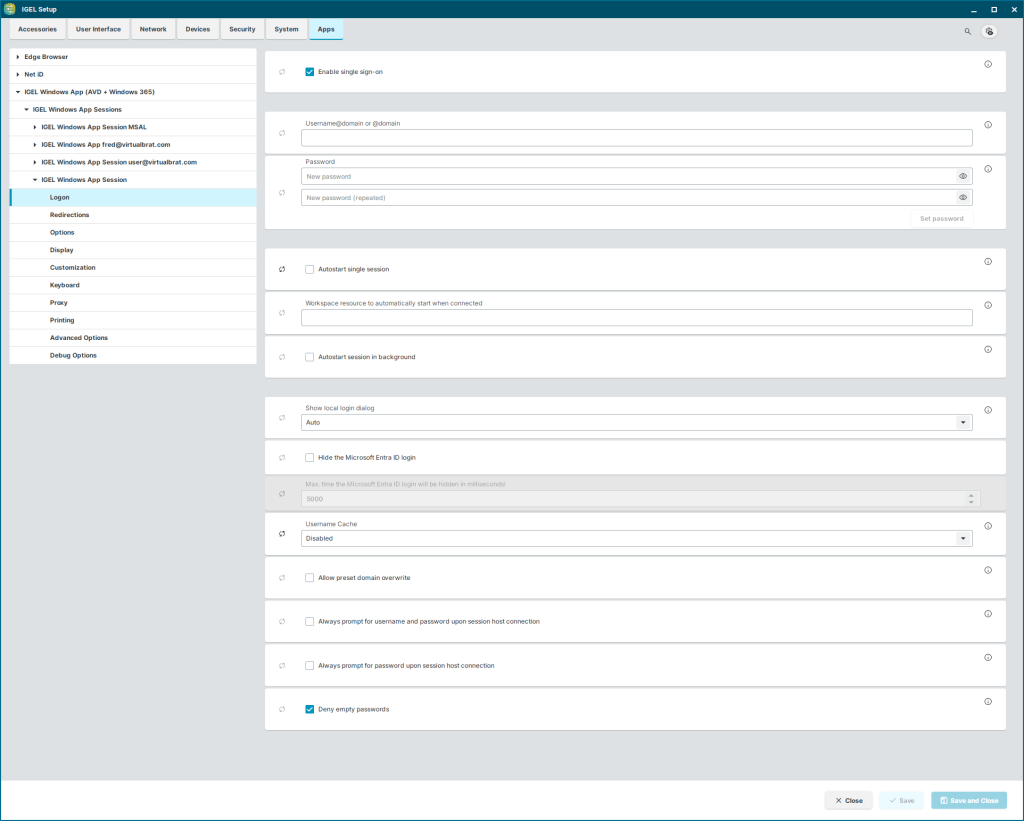
Enable single sign-on (default enabled)
This setting is not to be confused with RDSAADAUTH – If you have configured your IGEL OS Endpoint to require a login to Entra, before showing the IGEL OS Desktop, you can re-use those credentials to do single sign-on to the IGEL Windows App. Read more here about how to configure IGEL OS for Entra login: https://kb.igel.com/en/igel-os-base-system/current/how-to-configure-single-sign-on-sso-on-igel-os-12
Username@domain or @domain (default blank)
Here you can specify either a UPN for automatic login, or just a domain. The UPN is self-explanatory, the @domain is a neat option. if you specify @virtualbrat.com then the user only needs to type their username (everything before the @). Note that this function needs Show local login dialogue be set to Always
Password (default blank)
This setting allows you to pre-specify the password for automatic login to the session.
(Don’t forget to click “Set password” after typing the password)
Autostart single session (default enabled)
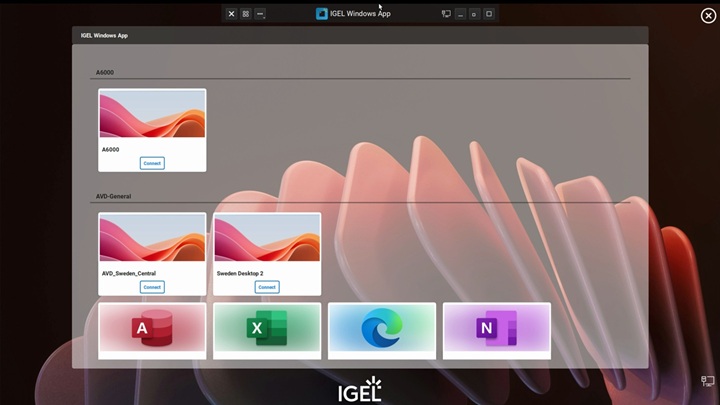
If the user only has one single published resource, it will automatically launch upon successful authentication. If this setting is disabled, the resource picker will always be shown.
Workspace resource to automatically start when connected (default blank)
Here you can specify the name of a specific published resource to automatically launch upon successful login.
Autostart in background (default disabled)
If the user has access to only one session, or if you have specified a specific session to start, when this setting is enabled, the IGEL Windows App will launch the session in background, but will not connect to the remote session before the user actively click on it. The thumbnail in the Resource Picker will show the login sequence, allowing the user to know when the session is ready.
Show local login dialogue (default Auto)
Depending on combinations of settings, if Enabled, this will show the IGEL login overlay (before the user hits the Entra login pages), if Disabled, the user will do the authentication directly at the Entra login pages.
Hide the Microsoft Entra ID login (default Disabled)
Dy default, the login flow will show the Entra login web page. If you enable this setting, the Entra login pages will be hidden, providing a more semaless experience for the user.
Max time the Microsoft Entra ID login will be hidden in milliseconds (default Disabled)
Here you can specify how long the Microsoft Entra login page is hidden. This setting us useful for the user to be able to catch, if the username was provided wrong, if the password doesn’t match, or if MFA authentication is needed. If this setting is not enabled, while the Hide the Microsoft Entra ID login is enabled, the user might get stuck. The default value of waiting time is 5000 milliseconds (=5 seconds), until the Entra pages are automatically shown to the user.
Username cache (default Auto)
Configures if IGEL Windows App should remember last used UPN for login.
Allow preset domain override (default disabled)
If @domain was specified in the Username@domain or @domain setting, this setting determines if the user can login to a different domain that the @domain specification. Allowing for Lock/Un-Lock the specified domain for login.
Always prompt for username and password upon session host connection (default disabled)
Equivalent to the server-side GPO requesting credentials validation when logging in to the Windows session
Always prompt for password upon session host connection (default disabled)
Equivalent to the server-side GPO requesting password validation when logging in to the Windows session
Deny empty passwords (default enabled)
This setting configures if empty password is permitted in the IGEL login dialogue Show local login dialogue which is a requirement to be set to disabled if using password-less login.
Options
The Options selection handles some UI customization features; here are what they do:
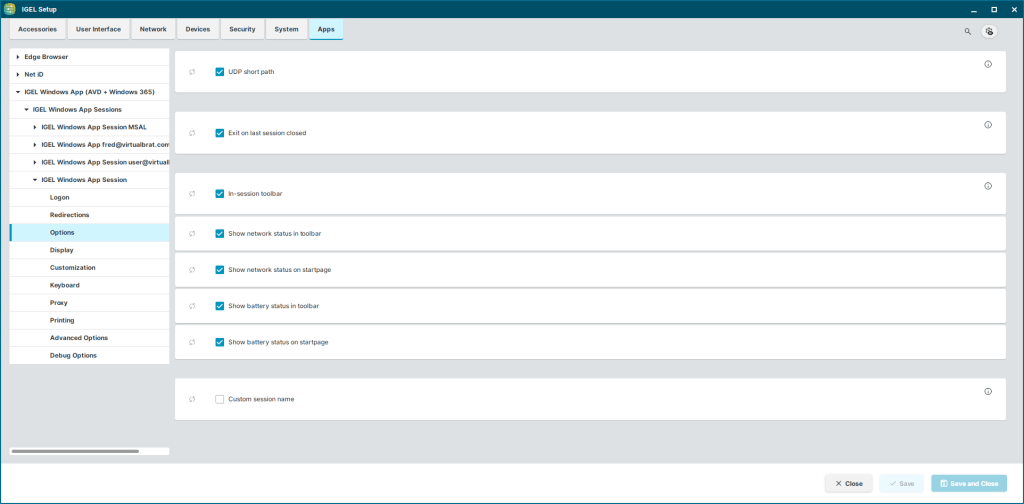
UDP Short path (default Enabled)
This item turns RDP Shortpath on/off – note, this is unrelated to the additional options and will be moved to another configuration dialogue by the time of release.
Exit on last session closed (default Enabled)
When enabled, the IGEL Windows App will exit when there are no active RDP sessions running. When disabled it will not exit but rather allow the user to select a session from the resource picker.
In-session toolbar (default Enabled)
The dropdown toolbar for the IGEL Windows App, that’s hidden in the top-center of the screen. If the cursor is placed in the area of the toolbar, it will drop down and allow Minimizing the session, go to Windowed mode, view Virtual Channel Statistics, display the Resource Picker, and close the session.
Show network status in toolbar (default Enabled)
Shows a LAN/Wi-Fi symbol (including connection strength for Wi-Fi) in the In-session toolbar.
Show network status on startpage (default Enabled)
Shows a LAN/Wi-Fi symbol (including connection strength for Wi-Fi) in the Resource Picker lower right corner.
Show battery status in toolbar (default Enabled)
Shows a battery symbol (including battery level/charging indicator) in the In-session toolbar.
Show battery status in startpage (default Enabled)
Shows a battery symbol (including battery level/charging indicator) in the Resource Picker lower right corner.
Custom session name (default Disabled)
When enabled, the name of the session will be displayed for the application in the taskbar.
Customization
The customization section allows to control the graphical layout of the IGEL Windows App, here are the options explained:
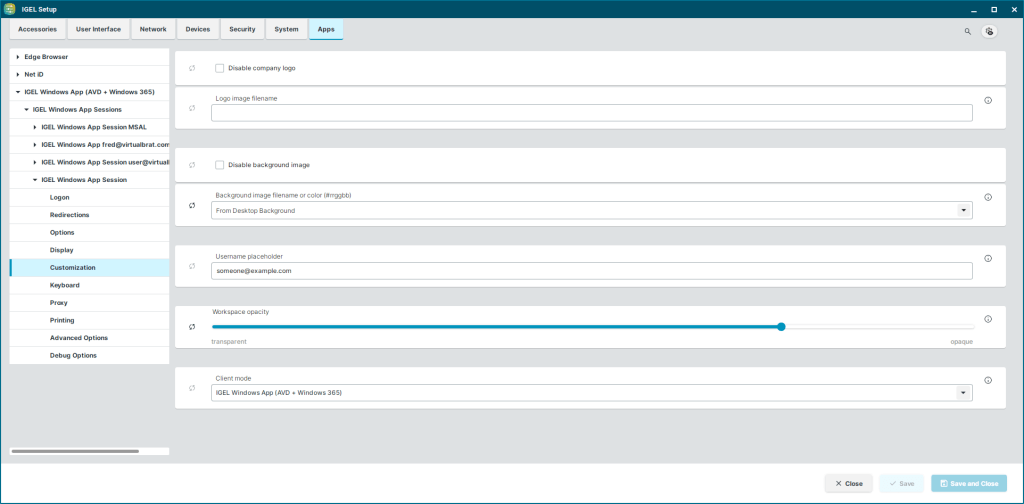
Disable the company Logo (default Disabled)
When enabled, the company logo in the central lower part of the IGEL login dialogue and Resource Picker are removed.
Logo image filename (default Blank)
Allows specifying a custom logo to use instead of the default IGEL logo.
Disable background image (default Disabled)
When enabled, the background image of the IGEL Windows App is removed.
Background image filename or color (#rrggbb) (default Blank)
In this drop down, you can specify a path and filename to the background image of choice, or you can select to use the IGEL OS Desktop Background as background image for the IGEL Windows App. Alternatively, you can specify a solid background color based on the RGB scale in hexadecimal values.
Username placeholder (default someone@example.com)
Changing the text in this field will alter the text displayed when the username field in the IGEL Login Dialogue is displayed.
Workspace opacity (default opaque)
This leveler controls how transparent the IGEL login overlay will be ontop of the background image of the IGEL Windows App during the login sequence and the Resource Picker.
Client mode (default IGEL Windows App (AVD + Windows 365)
Here we can control what layout to use for the login sequence and Resource Picker. Default the IGEL Windows App uses the updated graphical layout. Changing to IGEL Azure Virtual Desktop (AVD) will bring back the IGEL AVD App user experience, while selecting IGEL Windows 365 (Cloud PC), will bring back the IGEL Windows 365 App user experience.
I hope this blog helps you to understand the dynamic IGEL Windows App, and how it can help you to modify the User Interface to suite your needs.
Stay well!! /Fred
 VirtualBrat